Running OpenClaw on low end PC is possible without powerful hardware or a dedicated GPU. OpenClaw can run efficiently even with limited system resources.
This guide shows how to install, configure, and optimize OpenClaw on a low end PC, along with system requirements, performance tips, and troubleshooting steps.
System Requirements
OpenClaw can run on minimal hardware:
| Component | Minimum | Recommended |
|---|---|---|
| RAM | 4GB | 8GB+ |
| CPU | Dual Core | Quad Core |
| Storage | 10GB Free | 20GB Free |
| GPU | Not Required | Optional |
| OS | Windows / Linux / Mac | Linux preferred |
| Internet | Required | Stable connection |
When OpenClaw runs on a low end PC, performance may be limited. If your system struggles, you can use Ampere.sh for smoother performance without upgrading your hardware.
Method 1 - One Command Install (Recommended)
This is the easiest and fastest way to install OpenClaw on low end PC.
Step 1: Install OpenClaw
Open Terminal or Command Prompt and run:
curl -fsSL https://openclaw.ai/install.sh | bashThis command will:
- Install OpenClaw
- Install Node.js (if missing)
- Setup required dependencies
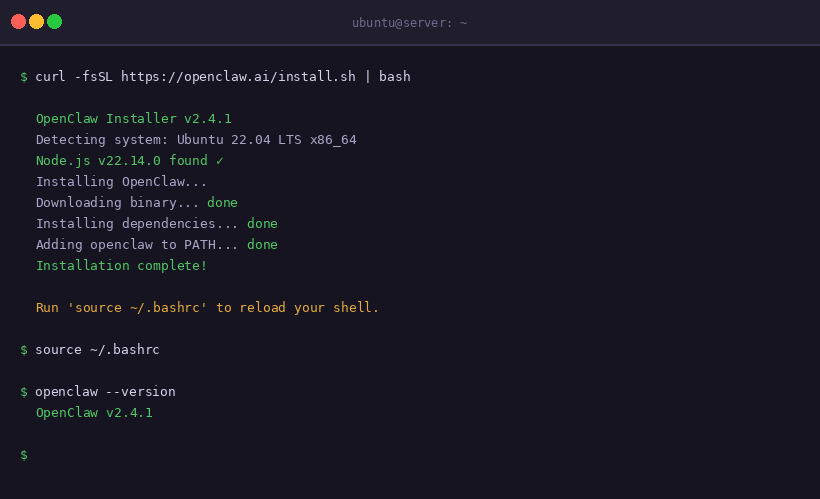
OpenClaw installer detecting OS, installing dependencies, and confirming version
Step 2: Run Setup Wizard
After installation, run:
openclaw onboardThis will configure your agent, setup the environment, and complete installation.
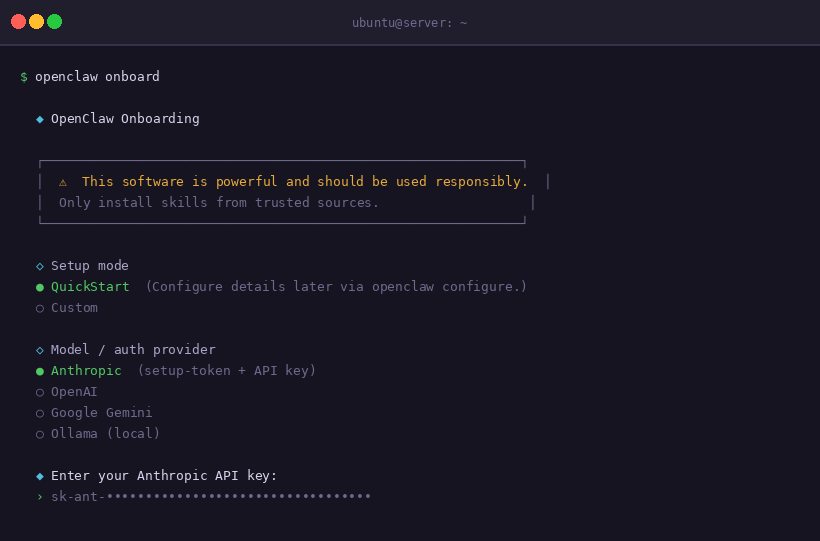
openclaw onboard - select QuickStart and choose your AI provider
Step 3: Start OpenClaw
Run:
openclaw gateway startYour OpenClaw agent is now running.
Method 2 - Manual Install (If Installer Fails)
Use this if the one-command installer doesn't work on your system.
Step 1: Install Node.js 22
Install nvm (Node Version Manager):
curl -o- https://raw.githubusercontent.com/nvm-sh/nvm/v0.39.7/install.sh | bash
source ~/.bashrc
Install and use Node.js 22:
nvm install 22
nvm use 22
node -v
Make sure the version shows v22 or higher.
Step 2: Run OpenClaw Installer
curl -fsSL https://openclaw.ai/install.sh | bashStep 3: Setup OpenClaw
openclaw onboardStep 4: Start OpenClaw
openclaw gateway startWindows Installation
For Windows PowerShell:
iwr -useb https://openclaw.ai/install.ps1 | iexThen run:
openclaw onboard
openclaw gateway start
Verify Installation
Check if OpenClaw is installed:
openclaw --versionIf version appears, installation is successful.
Installing OpenClaw on low-end systems can sometimes be slow or unstable. If you'd prefer a smoother experience, you can run OpenClaw on Ampere.sh without worrying about system limitations.
Once OpenClaw is running, connect a messaging channel - Telegram, WhatsApp, Discord, Signal, Slack, or any other supported app - to start chatting with your AI agent.