Running OpenClaw on a Raspberry Pi gives you a personal AI agent that stays on 24/7 - without a cloud bill.
If you prefer skipping manual setup, you can also deploy it instantly using Ampere.sh.
Can a Raspberry Pi Actually Run OpenClaw?
Yes - with the right model. OpenClaw is a Node.js application, and Node runs well on the Pi's ARM64 chip. The limiting factor isn't the CPU - it's RAM.
OpenClaw's gateway process typically uses 150-300MB of memory at idle, and spikes higher during active conversations. That's fine on a 4GB or 8GB Pi. On a 1GB Pi 3, you're fighting for every megabyte.
Pi 3 (1GB)
Possible with swap, but painful. Not recommended.
Pi 4 (4GB)
Works well for a single agent. The sweet spot for most users.
Pi 5 (8GB)
Comfortable. Multiple agents, Docker sandbox, room to breathe.
Hardware & Prerequisites
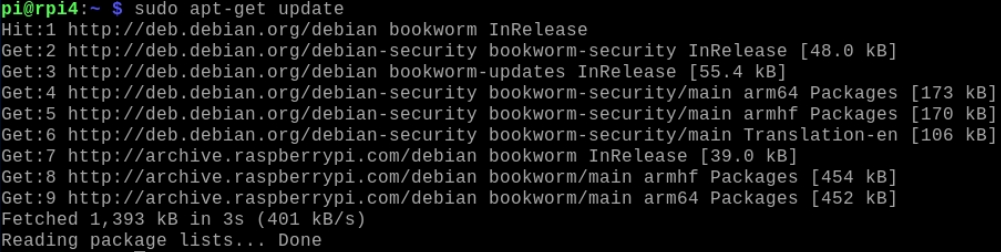
Before running the installer, make sure the essential build tools are present:
sudo apt-get update
sudo apt-get install -y curl git build-essential
If this setup feels a bit resource-heavy for your device, you can run OpenClaw in about a minute on Ampere.sh without configuring anything locally - no hardware, no dependencies.
Step-by-Step Installation Guide
Follow these steps in order. Each one accounts for the Pi's ARM architecture - don't skip the OS check or the Node install even if you think you already have them set up.
Check Your OS is 64-bit
OpenClaw requires Node.js 22+, which only runs on 64-bit OS. Many Pi setups still default to 32-bit. Check yours first:
uname -mIf you see aarch64 you're good. If you see armv7l, re-flash with Raspberry Pi OS (64-bit) using the Raspberry Pi Imager before continuing.
Install Node.js 22+
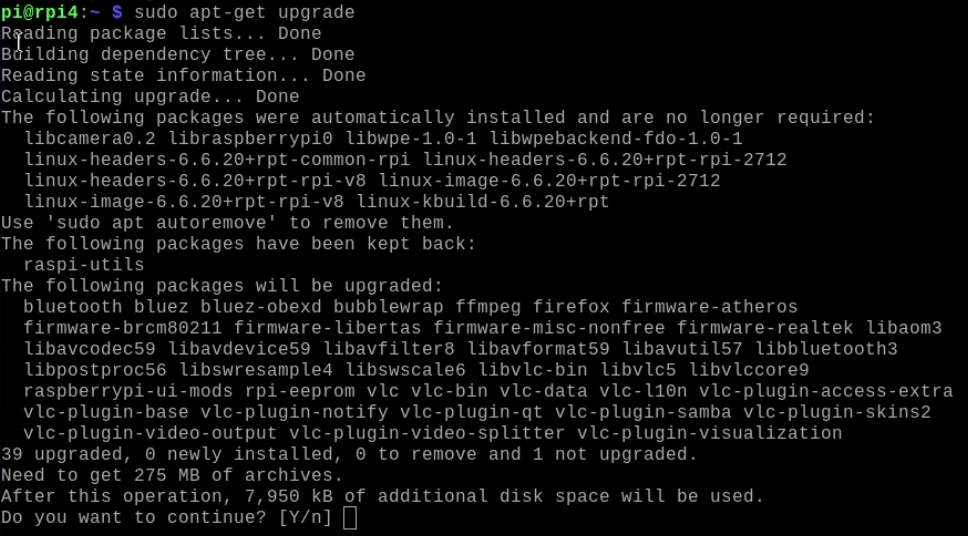
Don't use the version from Raspberry Pi OS's default repos - it ships an outdated Node. Install directly from NodeSource:
curl -fsSL https://deb.nodesource.com/setup_22.x | sudo -E bash -
sudo apt-get install -y nodejs
Verify: node -v should show v22.x.x or newer.
Run the OpenClaw Installer
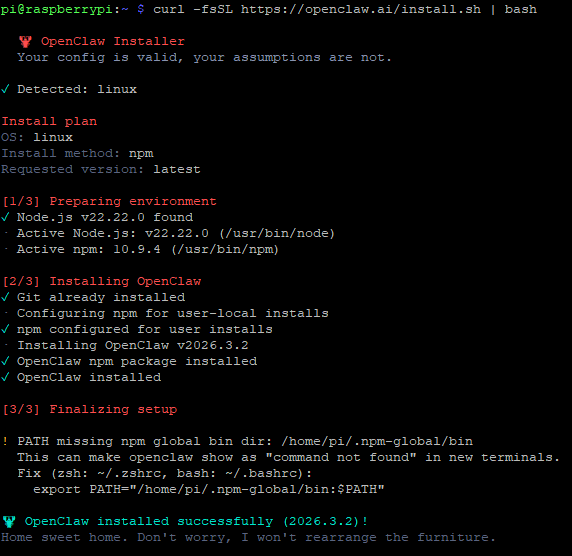
Run the official install script - it detects your Node version, installs the CLI globally, and launches the onboarding wizard:
curl -fsSL https://openclaw.ai/install.sh | bashIf openclaw is not found after install, run exec $SHELL -l to reload your shell session.
Complete Onboarding
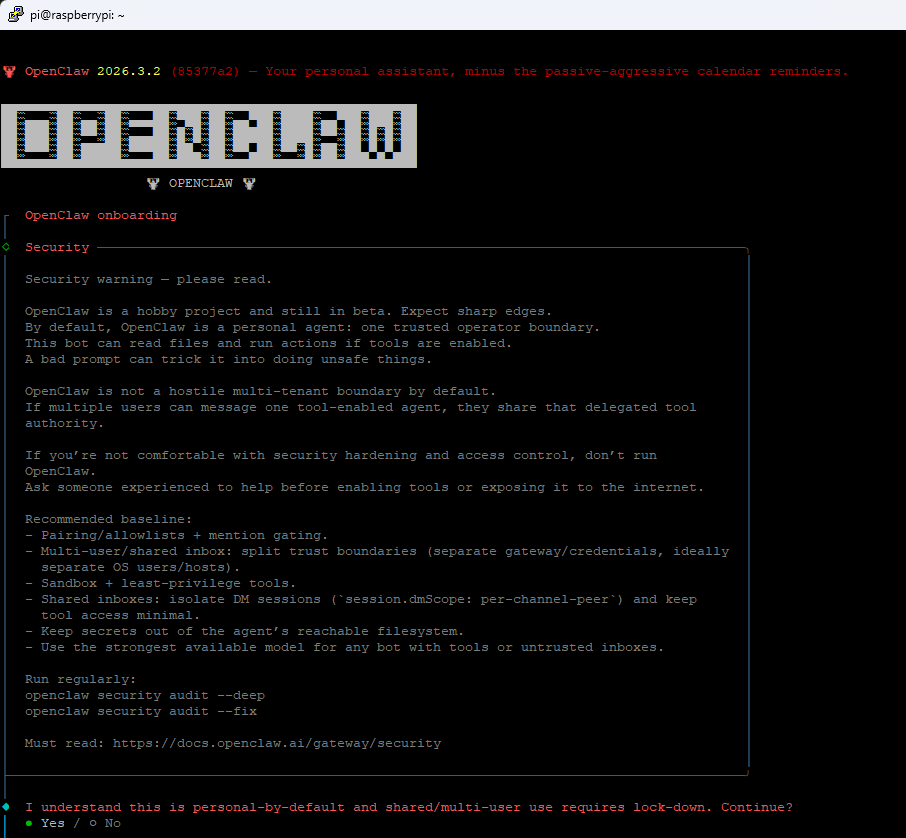
The onboarding wizard will walk you through:
- Choosing an AI provider (Anthropic, OpenAI, etc.) and entering your API key
- Connecting a messaging channel - Discord, Telegram, or WhatsApp
- Setting a gateway token for dashboard access
After it completes, verify with: openclaw doctor
Start the Gateway & Enable Auto-Start
Start the gateway daemon and install it as a system service so it restarts automatically after every reboot:
openclaw gateway start
openclaw gateway install
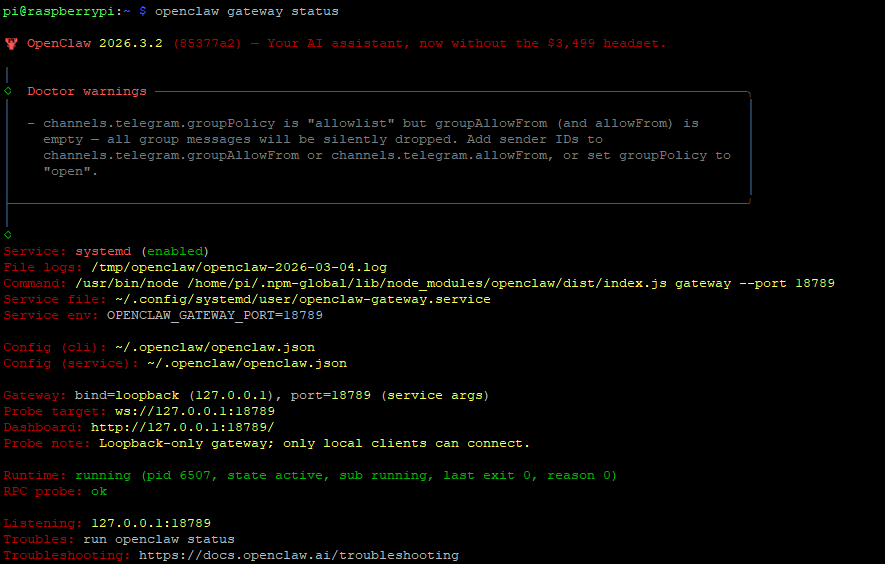
Check it's running: openclaw gateway status. Your Pi is now a 24/7 AI agent host - no cloud required.
Troubleshooting
openclaw: command not found
Run exec $SHELL -l and try again. If still missing, rerun the install script.
exec $SHELL -lNode version too old
Install Node 22+ from NodeSource and re-run onboarding.
curl -fsSL https://deb.nodesource.com/setup_22.x | sudo -E bash -
sudo apt-get install -y nodejs
openclaw onboard
Control UI not reachable from your laptop
Confirm you're using the Pi's local IP address (not localhost) and that both devices are on the same network.
# Open in your browser:
http://<PI_IP>:18789/
Gateway not running after onboarding
Run the status command and check service logs.
openclaw gateway status
openclaw gateway start
Channel added but messages don't arrive
Re-check your bot token and channel config; re-add the channel if needed.
openclaw channels list
openclaw channels login
If you don't want to deal with these issues, you can deploy OpenClaw on a managed hosting platform with:
- ✓ No setup
- ✓ No debugging
- ✓ No environment configuration
Which Pi Should You Use?
Not all Pis are created equal. Here's how different models handle OpenClaw:
| Pi 3B+ (1GB) | Pi 4 (2GB) | Pi 4 (4GB) | Pi 4 (8GB) | Pi 5 (8GB) | |
|---|---|---|---|---|---|
| Installs? | With swap | Yes | Yes | Yes | Yes |
| Runs reliably? | No | Mostly | Yes | Yes | Yes |
| Docker sandbox? | No | No | Limited | Yes | Yes |
| Multi-agent? | No | No | No | Possible | Yes |
| Recommended | No | Budget | Best value | Power user | Max perf |