Running OpenClaw on Windows 10 is completely doable - but it requires WSL2, Docker, and a few configuration steps that can take 1-3 hours depending on your setup.
If you want to skip the local setup entirely, Ampere.sh gets OpenClaw running in 60 seconds - no WSL2, no Docker, no configuration required.
System Requirements for Running OpenClaw on Windows 10
OpenClaw runs on Windows 10 through WSL2 and Docker. Before you begin, verify your machine meets every item below - most failed installs trace back to one missing requirement:
| Component | Requirement |
|---|---|
| RAM | 8 GB minimum (16 GB recommended) |
| CPU | 64-bit processor, 4+ cores (Intel or AMD) |
| OS Version | Windows 10 version 1903+ (build 18362+), 64-bit |
| Storage | 10 GB free disk space (SSD recommended) |
| Virtualization | Enabled in BIOS (required for WSL2 and Docker) |
| Internet | Stable connection (needed for Docker images and npm packages) |
| PowerShell | Version 5.1+ (run as Administrator for setup steps) |
| Dependencies | WSL2, Docker Desktop, Node.js v18+ |
How to Install OpenClaw on Windows 10
Step 1: Enable WSL2
WSL2 (Windows Subsystem for Linux 2) lets you run a real Linux kernel inside Windows. Docker Desktop needs it to run containers on Windows 10.
Open PowerShell as Administrator (right-click → Run as administrator) and run:
wsl --installThis installs WSL2 with Ubuntu as the default distro. Restart your computer when prompted.
After reboot, open PowerShell again and verify WSL2 is active:
# Set WSL2 as default version
wsl --set-default-version 2

# Verify your distro is running version 2
wsl --list --verbose
You should see VERSION 2 next to your Linux distro. If it shows version 1, run:
wsl --set-version Ubuntu 2Heads up: WSL2 installation can fail on older Windows 10 builds. If wsl --install doesn't work, you may need to manually enable WSL2 through Windows Features.
Step 2: Install Docker Desktop
Docker runs OpenClaw in an isolated container so you don't have to worry about conflicting dependencies.
- Download Docker Desktop for Windows
- Run the installer - enable "Use WSL2 instead of Hyper-V" when prompted
- After install, open Docker Desktop and wait until it shows "Engine running" in the bottom-left
- Open PowerShell and verify:
# Check Docker is installed
docker --version

# Test that Docker runs correctly
docker run hello-world
If docker run hello-world prints a success message, you're good to go.
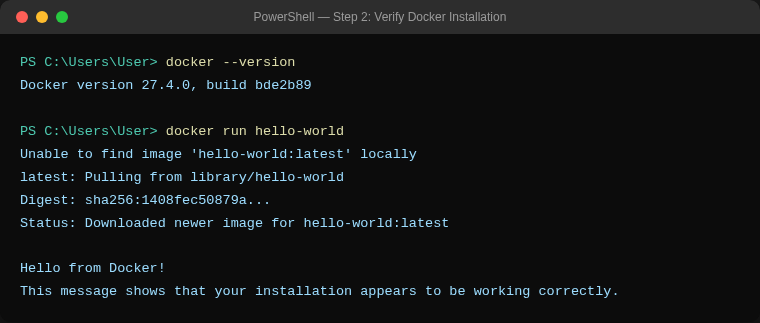
Expected output - "Hello from Docker!" confirms Docker is running correctly
Note: Many users hit issues here - Docker not starting, WSL2 networking conflicts, or Windows Defender blocking connections. If you'd rather avoid the debugging entirely, Ampere.sh provides a pre-configured, fully managed environment.
Step 3: Install Node.js
OpenClaw requires Node.js v18 or later. Download the LTS version:
- Go to nodejs.org
- Download the LTS installer for Windows
- Run the installer with default settings
- Open a new PowerShell window and verify:
# Check Node.js version (should be 18+)
node --version

# Check npm version
npm --version
Step 4: Install OpenClaw
With Node.js installed, you can install OpenClaw globally via npm:
# Install OpenClaw globally
npm install -g openclaw

# Verify the installation
openclaw --version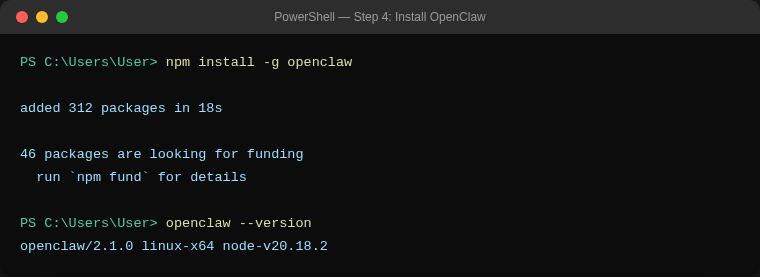
Installing OpenClaw globally via npm and verifying the install
If you see a version number, OpenClaw is installed and ready to configure.
Step 5: Configure & Start OpenClaw
Now set up your AI provider and start the gateway:
# Run the interactive configuration wizard
openclaw configure

# Start the OpenClaw gateway
openclaw gateway start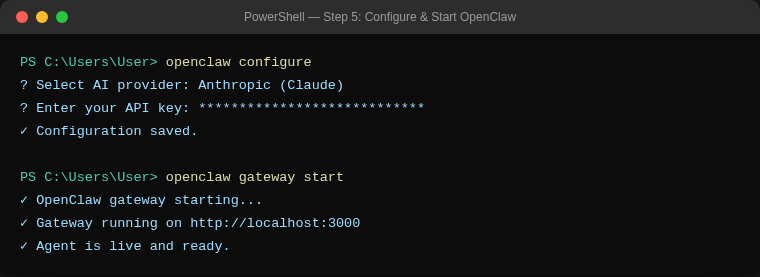
Running openclaw configure and starting the gateway
The configuration wizard will ask you to connect an AI provider (Anthropic, OpenAI, etc.) and set up your preferred messaging channels.
Once the gateway is running, your OpenClaw agent is live on your Windows 10 machine. Connect it to Discord, WhatsApp, or Telegram to start chatting with it from anywhere.
Common Errors & Fixes
Docker Desktop Won't Start
Error: Docker Desktop fails to launch or shows "WSL 2 installation is incomplete"
Fix: Docker needs WSL2 to be properly configured. Run the following:
# Make sure WSL2 is the default
wsl --set-default-version 2

# In Docker Desktop: Settings → Resources → WSL Integration
# Enable your Ubuntu distro

# If Docker still won't start, restart the WSL service:
wsl --shutdown
# Then reopen Docker Desktop
"openclaw" Command Not Found
Error: openclaw : The term 'openclaw' is not recognized as the name of a cmdlet
Fix: Node.js global bin path isn't in your system PATH. Try these options:
# Option 1: Open a new PowerShell window (often fixes it)

# Option 2: Add npm global path manually
$env:PATH += ";$(npm bin -g)"

# Option 3: Reinstall with explicit path
npm install -g openclaw --prefix C:\Users\YourName\AppData\Roaming\npm
Port Conflict (EADDRINUSE)
Error: Error: listen EADDRINUSE: address already in use :::3000
Fix: Another process is already using the port. Find and kill it:
# Find what's using port 3000
netstat -ano | findstr :3000

# Kill the process by its PID
taskkill /PID <PID_NUMBER> /F

# Then restart OpenClaw
openclaw gateway start
WSL2 Out of Memory
Error: System slows down or crashes - Docker and WSL2 consuming all available RAM
Fix: Limit WSL2 memory usage via a config file:
# Create or edit: C:\Users\YourName\.wslconfig
[wsl2]
memory=4GB
processors=2
swap=2GB
Save the file, then restart WSL:
wsl --shutdownWindows Defender Blocking Connections
Error: OpenClaw or Docker can't connect to the internet or local ports are blocked by firewall
Fix: Allow Docker and Node.js through Windows Firewall:
- Open Windows Security → Firewall & network protection → Allow an app through firewall
- Make sure Docker Desktop and Node.js are allowed on both Private and Public networks
- If you're still blocked, temporarily disable the firewall to test, then add the specific rules
Faster Alternative - Deploy on Ampere.sh
If you don't want to deal with WSL2, Docker networking, memory limits, or firewall issues, deploy OpenClaw on Ampere.sh - fully configured and ready to use, with no local setup at all:
No Setup
No WSL2, no Docker, no Node.js. Everything is pre-configured and ready to go.
Free Credits
Start for free - no credit card required. Upgrade when you're ready.
Zero Debugging
No port conflicts, no memory issues, no firewall headaches.
Always On
Your agent runs 24/7 - even when your laptop is off.
Windows 10 Setup vs Ampere.sh
| Feature | Windows 10 | Ampere.sh |
|---|---|---|
| Setup Time | 1-3 hours | 60 seconds |
| Difficulty | High | None |
| Requires WSL2/Docker | Yes | No |
| Common Errors | Frequent | None |
| Maintenance | Manual updates | Fully managed |
| Uptime | Only when PC is on | 24/7 always-on |