Run OpenClaw on Google Cloud Platform (GCP) to keep your AI agent running 24/7 without relying on your local machine.
This setup is ideal if you want a reliable production deployment with low monthly cost and high uptime.
Minimum PC Requirements
| Component | Minimum Requirement | Recommended |
|---|---|---|
| CPU | Dual-Core Processor | Quad-Core (Intel i5 / Ryzen 5) |
| RAM | 4GB | 8GB+ |
| Storage | 10GB Free | 20GB+ |
| Internet | 10 Mbps | 25 Mbps+ |
| Operating System | Windows 10 / Linux / macOS | Windows 11 / Linux |
| Terminal Access | Command Prompt / PowerShell / Terminal | Windows Terminal |
| Browser | Chrome / Edge / Firefox | Latest version |
Recommended GCP VM Specs
| Machine Type | CPU | RAM | Recommendation |
|---|---|---|---|
e2-micro | Shared | 1GB | Not recommended |
e2-small | 2 vCPU | 2GB | Minimum |
e2-medium | 2 vCPU | 4GB | Recommended |
How to Run OpenClaw on GCP?
Step 1: Install the gcloud CLI
Install the Google Cloud CLI on your local machine:
https://cloud.google.com/sdk/docs/installOnce installed, initialize and authenticate:
gcloud init
gcloud auth login
Alternatively, every step in this guide can also be done through the Google Cloud Console at https://console.cloud.google.com/
Step 2: Create a GCP Project
Create a new project for your OpenClaw deployment:
gcloud projects create my-openclaw-project --name="OpenClaw Gateway"
gcloud config set project my-openclaw-project
Enable billing for the project at https://console.cloud.google.com/billing (required for Compute Engine). Then enable the Compute Engine API:
gcloud services enable compute.googleapis.comStep 3: Create the Compute Engine VM
Create a VM with Debian 12 and a 20GB boot disk:
gcloud compute instances create openclaw-gateway \
  --zone=us-central1-a \
  --machine-type=e2-small \
  --boot-disk-size=20GB \
  --image-family=debian-12 \
  --image-project=debian-cloud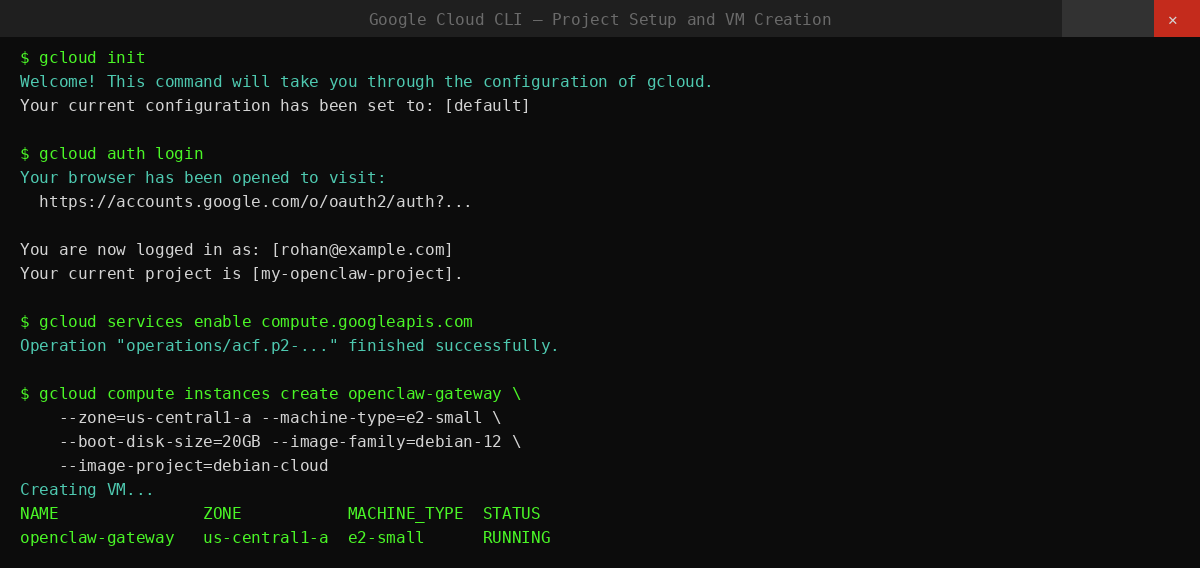
Step 4: SSH Into the VM
gcloud compute ssh openclaw-gateway --zone=us-central1-aIf the connection is refused, wait 1-2 minutes after VM creation for SSH key propagation, then retry.
Step 5: Install Docker
Inside the VM, run:
sudo apt-get update
sudo apt-get install -y git curl ca-certificates
curl -fsSL https://get.docker.com | sudo sh
sudo usermod -aG docker $USER
Log out for the group change to take effect:
exitSSH back in:
gcloud compute ssh openclaw-gateway --zone=us-central1-aVerify Docker is working:
docker --version
docker compose version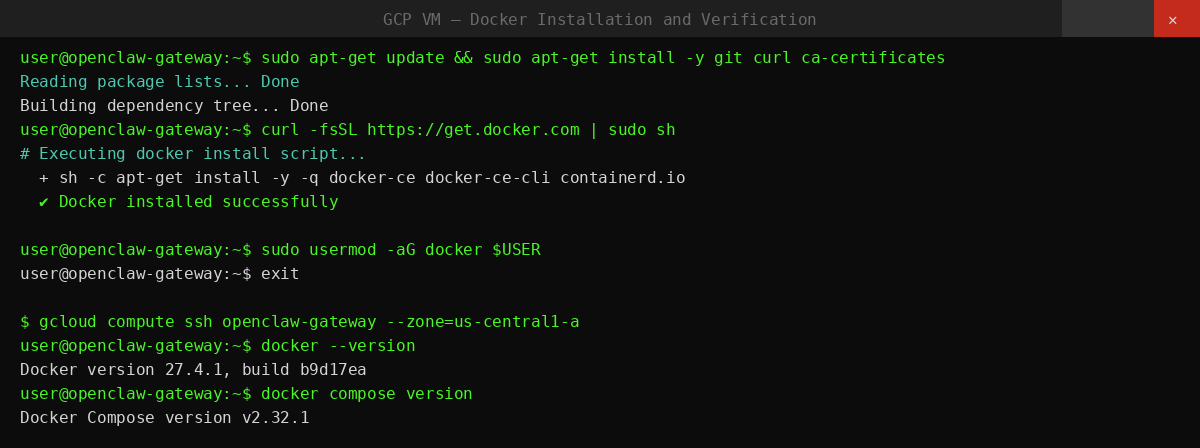
Step 6: Clone the OpenClaw Repository
git clone https://github.com/openclaw/openclaw.git
cd openclaw
Then create directories:
mkdir -p ~/.openclaw
mkdir -p ~/.openclaw/workspace
This ensures your config and workspace survive container rebuilds and VM restarts.
Step 7: Configure Environment Variables
Create a .env file in the repository root:
OPENCLAW_IMAGE=openclaw:latest
OPENCLAW_GATEWAY_TOKEN=change-me-now
OPENCLAW_GATEWAY_BIND=lan
OPENCLAW_GATEWAY_PORT=18789

OPENCLAW_CONFIG_DIR=/home/$USER/.openclaw
OPENCLAW_WORKSPACE_DIR=/home/$USER/.openclaw/workspace

GOG_KEYRING_PASSWORD=change-me-now
XDG_CONFIG_HOME=/home/node/.openclaw
Generate strong secrets for OPENCLAW_GATEWAY_TOKEN and GOG_KEYRING_PASSWORD:
openssl rand -hex 32Do not commit this file to version control.
Step 8: Configure Docker Compose
Create docker-compose.yml in the repository root:
services:
  openclaw-gateway:
    image: ${OPENCLAW_IMAGE}
    build: .
    restart: unless-stopped
    env_file:
      - .env
    environment:
      - HOME=/home/node
      - NODE_ENV=production
      - TERM=xterm-256color
      - OPENCLAW_GATEWAY_BIND=${OPENCLAW_GATEWAY_BIND}
      - OPENCLAW_GATEWAY_PORT=${OPENCLAW_GATEWAY_PORT}
      - OPENCLAW_GATEWAY_TOKEN=${OPENCLAW_GATEWAY_TOKEN}
      - GOG_KEYRING_PASSWORD=${GOG_KEYRING_PASSWORD}
      - XDG_CONFIG_HOME=${XDG_CONFIG_HOME}
      - PATH=/home/linuxbrew/.linuxbrew/bin:/usr/local/sbin:/usr/local/bin:/usr/sbin:/usr/bin:/sbin:/bin
    volumes:
      - ${OPENCLAW_CONFIG_DIR}:/home/node/.openclaw
      - ${OPENCLAW_WORKSPACE_DIR}:/home/node/.openclaw/workspace
    ports:
      - "127.0.0.1:${OPENCLAW_GATEWAY_PORT}:18789"
    command:
      [
        "node",
        "dist/index.js",
        "gateway",
        "--bind",
        "${OPENCLAW_GATEWAY_BIND}",
        "--port",
        "${OPENCLAW_GATEWAY_PORT}",
        "--allow-unconfigured",
      ]
The port binding 127.0.0.1:18789 keeps the gateway loopback-only on the VM. You access it securely through an SSH tunnel.
Step 9: Build and Launch OpenClaw
Build the Docker image and start the container:
docker compose build
docker compose up -d
Check the container is running:
docker compose ps
docker compose logs -f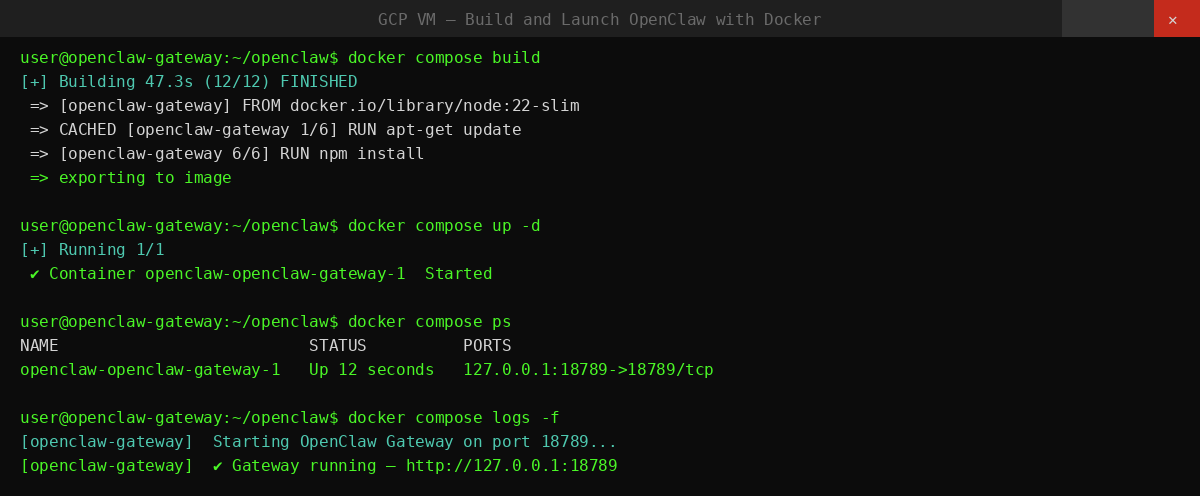
Step 10: Configure Allowed Origins
When binding to LAN, set the trusted browser origin:
docker compose run --rm openclaw-cli config set gateway.controlUi.allowedOrigins '["http://127.0.0.1:18789"]' --strict-jsonStep 11: Access the Dashboard from Your Local Machine
From your local machine (not the VM), open an SSH tunnel:
gcloud compute ssh openclaw-gateway --zone=us-central1-a -- -L 18789:127.0.0.1:18789Open in your browser:
http://127.0.0.1:18789Get a tokenized dashboard link:
docker compose run --rm openclaw-cli dashboard --no-openIf the dashboard shows unauthorized or disconnected (1008): pairing required, approve your browser:
docker compose run --rm openclaw-cli devices list
docker compose run --rm openclaw-cli devices approve <requestId>
After setup, connect a messaging channel - Telegram, WhatsApp, Discord, Slack, Microsoft Teams, or any other supported app - to start chatting with your agent.
Common Issues and Fix
| Issue | Fix |
|---|---|
| SSH connection refused | Wait 1-2 min after VM creation for SSH key propagation |
| Docker build fails (exit 137 / OOM) | gcloud compute instances set-machine-type openclaw-gateway --zone=us-central1-a --machine-type=e2-small |
| docker: command not found | Log out and back in after sudo usermod -aG docker $USER |
| docker compose not found | sudo apt-get install -y docker-compose-plugin |
| Gateway container not starting | docker compose logs -f to check error output |
| Dashboard shows unauthorized | docker compose run --rm openclaw-cli devices approve <requestId> |
| OS Login permission error | gcloud compute os-login describe-profile - check IAM permissions |
| Container stops after reboot | Confirm restart: unless-stopped is set in docker-compose.yml |
If you prefer to skip these setup steps entirely, you can deploy OpenClaw on Ampere.sh in 60 seconds. No Docker, no config files, no infrastructure management required.